Before trying any of the following commands in powershell make sure that service SharePoint 2010 Administrationis started. if it is not started then start it.
Go to Start -> All Programmers -> Microsoft SharePoint 2010 Products -> SharePoint 2010 Management Shell
To install a solution we use the Add-SPSolution command. If you are using a Sandboxed solution you would use Add-SPUserSolution instead. But for Sandbox solution I would prefer adding the wsp file using GUI in Central Admin.
PS C:\Users\user1> Add-SPSolution C:\mySolution.wsp
Now to deploy the solution to your Sharepoint site we shall use Install-SPSolution
PS C:\Users\user1> Install-SPSolution -Identity mySolution.wsp -WebApplication https://mySiteURL –GACDeployment
To upgrade solution use Update-SPSolution
PS C:\Users\user1>Update-SPSolution –Identity mySolution.wsp –LiteralPath C:\mySolution.wsp –GACDeployment
To retract a solution we use the Uninstall-SPSolution
PS C:\Users\user1>Uninstall-SPSolution –Identity mySolution.wsp –WebApplication https://mySiteURL
And to remove it from solution store use Remove-SPSolution
PS C:\Users\user1>Remove-SPSolution –Identity mySolution.wsp
Few little troubleshooting.
1. You may sometime see the following error when trying Install-SPSolution
Install-SPSolution : This solution contains no resources scoped for a Web appli
cation and cannot be deployed to a particular Web application.
Then try this instead
PS C:\Users\user1> Install-SPSolution -Identity mySolution.wsp –GACDeployment
2. If any of your deploy command fails you will not be able to deploy it again. If you try again you will see the following error
A deployment or retraction is already under way for the so
lution "yourSolution", and only one deployment or retraction at a time is supported.....
To handle this issue open central admin. Go to Monitoring->Review Timer Job Definitions
Then find the job which has you solution name in title. Delete it.
3. You may see the following error if SharePoint 2010 Administration service is not started.
Install-SPSolution: Admin SVC must be running in order to create deployment timer job
So all you need to do is to go to the Services section in Control Panel\System and Security\Administrative Tools and look for the service called SharePoint 2010 Administration, it was on manual start up, changed it to automatic and started it and gotten rid of this error.
Monday, June 20, 2011


Tuesday, April 26, 2011
Different types of application with Sharepoint Object Model
SharePoint object model is a .NET-based API to SharePoint components. Or in simpler language you can say SP OM is a way to access Sharepoint components from your custom application(console,web etc.).
Thought I don't encourage anyone to use it over Sharepoint web services but there may be situations where you will have to use it. Sharepoint web services are the best way to deal with any sort of Sharepoint issues from outside of Sharepoint. And before using SP OM keep it in mind that The object model can be used when the application will run on the server where SharePoint is installed or in assemblies that are run within a site (such as a Web Part).
Here I am showing how to use SP OM in two types of application, Console and Web.
First console.
1. Create a console application and add reference to Microsoft.Sharepoint to your project. In case of SP2010 you will find it in "C:\Program Files\Common Files\Microsoft Shared\Web Server Extensions\14\ISAPI\Microsoft.SharePoint.dll" and in case of SP2007 you will find it in "C:\Program Files\Common Files\Microsoft Shared\Web Server Extensions\12\ISAPI\Microsoft.SharePoint.dll"
2. Add the following code to your project.
2. Now go to the "Properties" window of the project and select "Application" tab. Change the "Target Framework" to ".NET Framework 3.5". Now go to "Build" tab and change the "Platform Target" to "x64".
Now run your application. You should see something like "Currently logged in as: SHAREPOINT\system".
For Web appliaction.
1. Create a ASP.NET web site and add the following code in your .aspx page's code behind. Add Microsoft.Sharepoint like before.
As you can guess I have created a Label "Label1" in my page.
2. Create a web site in IIS. Now here is a small trick. While creating the site do not create a new application pool for your site, rather use the application pool of your Sharepoint site.
3. Now deploy your site to your IIS site.
Now if you browse the site you should see something like "Currently logged in as: SHAREPOINT\system".
After doing all these you still may have issues with Object Model. One popular but unauthenticated suggestion is to run all your application in "Administrator" mode. If still you have issues then beg help from Allah!
Thought I don't encourage anyone to use it over Sharepoint web services but there may be situations where you will have to use it. Sharepoint web services are the best way to deal with any sort of Sharepoint issues from outside of Sharepoint. And before using SP OM keep it in mind that The object model can be used when the application will run on the server where SharePoint is installed or in assemblies that are run within a site (such as a Web Part).
Here I am showing how to use SP OM in two types of application, Console and Web.
First console.
1. Create a console application and add reference to Microsoft.Sharepoint to your project. In case of SP2010 you will find it in "C:\Program Files\Common Files\Microsoft Shared\Web Server Extensions\14\ISAPI\Microsoft.SharePoint.dll" and in case of SP2007 you will find it in "C:\Program Files\Common Files\Microsoft Shared\Web Server Extensions\12\ISAPI\Microsoft.SharePoint.dll"
2. Add the following code to your project.
using System;
using System.Collections.Generic;
using System.Linq;
using System.Text;
using Microsoft.SharePoint;

namespace test
{
    class Program
    {
        static void Main(string[] args)
        {
            string siteStr = "<SP Site URL>";
            SPSite tempSite = new SPSite(siteStr);
            SPUserToken systoken = tempSite.SystemAccount.UserToken;
            using (SPSite site = new SPSite(siteStr, systoken))
            {
                using (SPWeb web = site.OpenWeb())
                {
                    //right now, logged in as Site System Account
                    Console.WriteLine("Currently logged in as: " + web.CurrentUser.ToString());
                    Console.Read();
                }
            }
        }
    }
}
2. Now go to the "Properties" window of the project and select "Application" tab. Change the "Target Framework" to ".NET Framework 3.5". Now go to "Build" tab and change the "Platform Target" to "x64".
Now run your application. You should see something like "Currently logged in as: SHAREPOINT\system".
For Web appliaction.
1. Create a ASP.NET web site and add the following code in your .aspx page's code behind. Add Microsoft.Sharepoint like before.
using System;
using System.Collections.Generic;
using System.Linq;
using System.Web;
using System.Web.UI;
using System.Web.UI.WebControls;
using Microsoft.SharePoint;

public partial class _Default : System.Web.UI.Page
{
    protected void Page_Load(object sender, EventArgs e)
    {
        string siteStr = "http://dacsvm0021/my/personal/SSO/";
        SPSite tempSite = null;
        SPSecurity.RunWithElevatedPrivileges(delegate(){
            tempSite = new SPSite(siteStr);
        });

        SPUserToken systoken = tempSite.SystemAccount.UserToken;
        using (SPSite site = new SPSite(siteStr, systoken))
        {
            using (SPWeb web = site.OpenWeb())
            {
                Label1.Text = "Currently logged in as: "+web.CurrentUser.ToString();
            }
        }

    }
}
As you can guess I have created a Label "Label1" in my page.
2. Create a web site in IIS. Now here is a small trick. While creating the site do not create a new application pool for your site, rather use the application pool of your Sharepoint site.
3. Now deploy your site to your IIS site.
Now if you browse the site you should see something like "Currently logged in as: SHAREPOINT\system".
After doing all these you still may have issues with Object Model. One popular but unauthenticated suggestion is to run all your application in "Administrator" mode. If still you have issues then beg help from Allah!
Saturday, February 26, 2011
Install Sharepoint 2010 in Windows 7
If you google with the title of this post you will see many people struggling with this and everyone with their own solution. Unfortunately none of the solutions worked for me. Here I am describing the steps I followed to do this.
Step 1. As you start your installation you will soon see the following error. Pretty disheartening :(
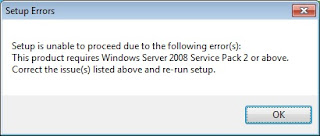
Now to handle this issue open the config.xml file from "\Files\Setup" folder. Add the following line in the <Configuration> section of this file.
Now your installation will proceed. Except this modification installation will not start in Windows 7.
Step 2. Now as your installation go on you will see the ‘non-supported for production’ notice:
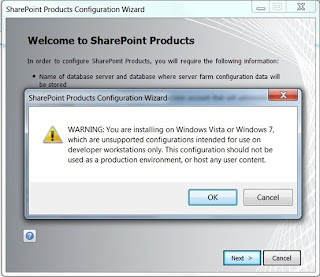
I hope I don't have to explain why this message is prompted. No one should try a production in Windows 7 fro sharepoint.
Step 3. Now you installation will be finished smoothly. But you may face the next hurdle during SharePoint Products Configuration Wizard. If "Windows identity foundation pack" is missing in your machine you will see the following error
Could not load file or assembly 'Microsoft.IdentityModel, Version=3.5.0.0, Culture=neutral, PublicKeyToken=31bf3856ad364e35' or one of its dependencies. The system cannot find the file specified.System.IO.FileNotFoundException: Could not load file or assembly 'Microsoft.IdentityModel, Version=3.5.0.0, Culture=neutral, PublicKeyToken=31bf3856ad364e35' or one of its dependencies. The system cannot find the file specified.
To resolve this download the pack from http://www.microsoft.com/downloads/details.aspx?FamilyID=eb9c345f-e830-40b8-a5fe-ae7a864c4d76&displaylang=en and install it in your Windows 7 machine.
Step 4. If "Chart Control" is missing in your windows 7 machine then you will get the following error.
An exception of type Microsoft.SharePoint.Upgrade.SPUpgradeException was thrown. Additional exception information: Failed to call GetTypes on assembly Microsoft.Office.Server.Search, Version=14.0.0.0, Culture=neutral, PublicKeyToken=71e9bce111e9429c. Could not load file or assembly 'System.Web.DataVisualization, Version=3.5.0.0, Culture=neutral, PublicKeyToken=31bf3856ad364e35' or one of its dependencies. The system cannot find the file specified.
To resolve this issue download it from http://go.microsoft.com/fwlink/?LinkID=122517 and install it.
Ok, all these should be enough. If you still are fighting with this please drop a comment, I shall try to answer with the solution.
Step 1. As you start your installation you will soon see the following error. Pretty disheartening :(

Now to handle this issue open the config.xml file from "\Files\Setup" folder. Add the following line in the <Configuration> section of this file.
<Setting Id="AllowWindowsClientInstall" Value="True"/>
Now your installation will proceed. Except this modification installation will not start in Windows 7.
Step 2. Now as your installation go on you will see the ‘non-supported for production’ notice:

I hope I don't have to explain why this message is prompted. No one should try a production in Windows 7 fro sharepoint.
Step 3. Now you installation will be finished smoothly. But you may face the next hurdle during SharePoint Products Configuration Wizard. If "Windows identity foundation pack" is missing in your machine you will see the following error
Could not load file or assembly 'Microsoft.IdentityModel, Version=3.5.0.0, Culture=neutral, PublicKeyToken=31bf3856ad364e35' or one of its dependencies. The system cannot find the file specified.System.IO.FileNotFoundException: Could not load file or assembly 'Microsoft.IdentityModel, Version=3.5.0.0, Culture=neutral, PublicKeyToken=31bf3856ad364e35' or one of its dependencies. The system cannot find the file specified.
To resolve this download the pack from http://www.microsoft.com/downloads/details.aspx?FamilyID=eb9c345f-e830-40b8-a5fe-ae7a864c4d76&displaylang=en and install it in your Windows 7 machine.
Step 4. If "Chart Control" is missing in your windows 7 machine then you will get the following error.
An exception of type Microsoft.SharePoint.Upgrade.SPUpgradeException was thrown. Additional exception information: Failed to call GetTypes on assembly Microsoft.Office.Server.Search, Version=14.0.0.0, Culture=neutral, PublicKeyToken=71e9bce111e9429c. Could not load file or assembly 'System.Web.DataVisualization, Version=3.5.0.0, Culture=neutral, PublicKeyToken=31bf3856ad364e35' or one of its dependencies. The system cannot find the file specified.
To resolve this issue download it from http://go.microsoft.com/fwlink/?LinkID=122517 and install it.
Ok, all these should be enough. If you still are fighting with this please drop a comment, I shall try to answer with the solution.
Subscribe to:
Posts (Atom)
